
Table of Contents
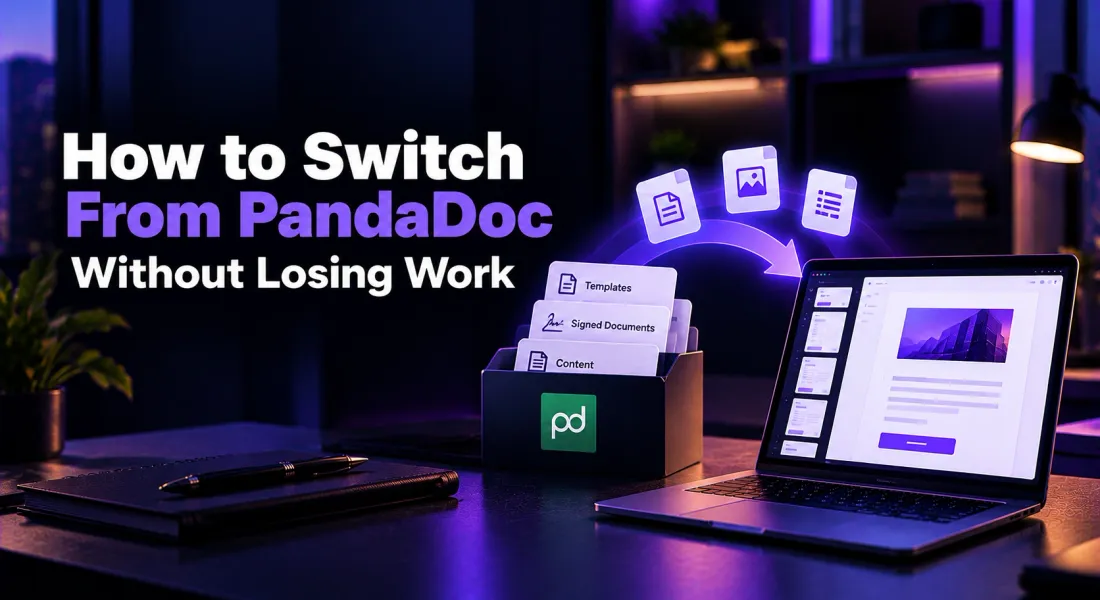
How to Switch From PandaDoc Without Losing Work
To switch from PandaDoc, follow six steps: check your renewal date, export what you need, rebuild your most-used templates, reconnect your tools, send your first document from the new platform, then cancel or downgrade PandaDoc. Done in that order, no live deal gets stuck halfway.
The risk in any PandaDoc migration is not the new tool. It is losing a signed contract, breaking a template your team relies on, or cancelling while a client still has a document waiting for signature. This guide walks through each step so none of that happens.
Before You Switch From PandaDoc: A Pre-Migration Checklist
Spend twenty minutes on this before you touch anything.
• Renewal date and billing term. Annual plans renew for a full year, so find your renewal date in your PandaDoc billing settings and plan the move before it.
• The templates you actually use. Most teams send from two or three templates. List them by how often they go out.
• Signed documents to archive. Decide which completed documents you need to keep for records.
• Live deals. Note every document still waiting on a client signature.
• Connected tools. List the CRM, payment and other integrations your PandaDoc account uses.
Rebuild your most-used PandaDoc template before your next renewal. Start free with your website URL.
What to Move Out of PandaDoc and What to Leave Behind
A migration is a good moment to clean up. Move the two or three templates you send most, every signed document you need for your records, and client-facing content such as service descriptions, pricing, case studies and team bios.
Leave behind unused templates, old drafts that were never sent, and duplicate versions of the same document. If nobody has opened a template in six months, you will not miss it.
How to Switch From PandaDoc in 6 Steps
Work through the steps in order. Each one protects something the next step depends on.
1. Export Your Signed Documents and Templates From PandaDoc
This is the step where you move documents out of PandaDoc, so take it slowly.
PandaDoc lets you download documents individually as PDFs or select several documents or a whole folder and download them in bulk, in which case PandaDoc emails you a .zip file. To export templates from PandaDoc, open a template and download it as a .docx file. The exact steps are in PandaDoc’s help article on managing and downloading documents.
Store the exports in a folder structure your team will understand later, for example by client and year. Do this before you change your plan, so you still have full access to everything.
2. Build Your Content Library in Proposal.biz
Instead of recreating your content piece by piece, paste your website URL into Proposal.biz. The Smart Content Library extracts your logo, colours, fonts, tone, services, pricing, team bios and case studies, and every document you create pulls from it.
You can also add files as content sources, so the service descriptions and case studies from your exported documents can feed the library too. Check that your current prices and newest case studies are in before you generate anything.
3. Rebuild Your Most-Used Templates
Start with the template you send most. Open your exported version for reference, then prompt Proposal.biz with what that document needs to contain, for example: “Monthly SEO retainer proposal, three tiers, 12-month term, case study from a SaaS client.” Refine the result in the drag-and-drop document editor, save it as a template, and move on to the next one.
Rebuilding from your content library rather than copying old layouts means each template picks up your current brand and pricing automatically.
4. Reconnect CRM Sync and Payment Integration
Set up CRM sync and payment integration in Proposal.biz so client details flow into documents and clients can pay at the point of signing. Integrations scale with your plan, so check which ones your plan includes on the pricing page.
Test the connection with one real client record before you rely on it. Create a document, check that the contact details pulled through correctly, and send it to yourself first.
If you are new to connecting the two systems, this guide to integrating proposal software with your CRM explains what to map.
5. Send Your Next Proposal as a Trackable Link
Do not move live deals mid-signature. Any document already sent from PandaDoc should finish there. Start every new deal in Proposal.biz from this point on.
Send your first proposal as a trackable link and watch how it performs. You can see when the client opens it and how far they read, which makes your follow-up specific. Our guide on how to track proposal engagement covers what to look for.
Ready to send your first document from the new setup? Create it free.
6. Cancel or Downgrade PandaDoc at Renewal
Once your last live PandaDoc deal has closed and your exports are safe, cancel or downgrade. To cancel a PandaDoc subscription, PandaDoc’s instructions are to go to Settings, then Billing, and select Cancel subscription. If the button is not shown, the billing page prompts you to contact your account manager. Those are the steps for how to cancel PandaDoc subscription billing on a standard account. Full details are in PandaDoc’s billing help article.
If you are on a monthly plan, PandaDoc also lets you downgrade to its Free plan instead of cancelling, which keeps access to your account. Download everything you need before you make either change.
4 PandaDoc Migration Mistakes to Avoid
Cancelling Before You Export
Download every signed document and template you need first. Treat export as step one, not an afterthought.
Moving Live Deals Mid-Signature
Resending a document a client is about to sign creates confusion. Let pending documents finish where they started.
Rebuilding Every Template at Once
Start with the two or three you send most. Rebuild the rest only when you actually need them.
Missing the Renewal Window
Annual plans renew for a full year. Set a reminder a month before the date so the switch happens on your schedule.
What Changes for Your Clients After the Switch
Very little, and mostly for the better. Clients receive a link instead of an attachment, open it on any device without downloading anything, and sign and pay in the same window.
With built-in e-signatures, signing records the signed status and date, and both parties receive a confirmation email.
Tell your regular clients about the change before the first new document arrives. A one-line note, such as “our proposals now come as a link you can read, sign and pay from”, avoids anyone mistaking it for spam.
If you are still comparing the cost of staying, see our breakdown of PandaDoc pricing for every plan and the extras on top.
Final Word on Switching From PandaDoc
A clean switch from PandaDoc comes down to order: check the renewal date, export first, rebuild the templates that matter, let live deals finish, then cancel. Most of the work is deciding what to keep, not moving it.
If you are still deciding where to move, compare the tools teams look at alongside PandaDoc before you commit.
FAQs About Switching From PandaDoc
How Do I Cancel My PandaDoc Subscription?
In your PandaDoc account, go to Settings, then Billing, and select Cancel subscription. If you do not see that option, follow the prompt on the billing page to contact your account manager. Download any documents you need before you cancel.
Can I Export My Templates From PandaDoc?
Yes. You can download templates and documents as .docx files from inside each template or document, and download documents as PDFs individually or in bulk as a .zip file.
What Happens to Documents Already Signed in PandaDoc?
They stay in your PandaDoc account while you have access to it. Download the signed copies you need for your records before you cancel or change your plan.
Can I Switch in the Middle of My Billing Term?
You can start using a new tool at any time, but annual PandaDoc plans run for the full year. Most teams start new deals in the new tool straight away and cancel PandaDoc at renewal.
Do My Clients Need an Account to Sign in Proposal.biz?
No. Clients open the shared link on any device and sign inside the document. Signing records the signed status and date, and both parties receive a confirmation email.

Ronak Surti
 Ronak Surti