
Table of Contents
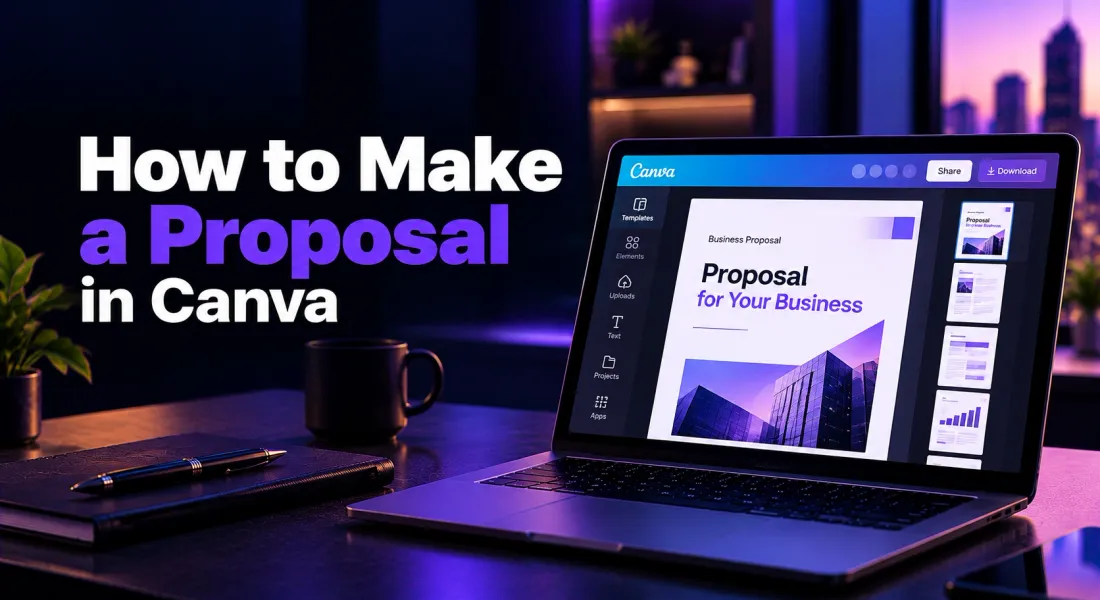
How to Make a Proposal in Canva: Template Tips and Step-by-Step Guide
Plenty of proposals start in Canva. You search for a Canva proposal template, pick one that looks right, swap in your details and export a PDF. For a one-off pitch that works, and you can try it without paying a cent.
This guide walks through how to make a proposal in Canva from start to finish: choosing a template, replacing the placeholder content, adding your brand, writing each section and sending it. Then we’ll be straight about what a proposal needs that Canva doesn’t do, and how to cover those gaps.
Which Canva format should you use?
Canva gives you three routes for a proposal, and the choice shapes everything after it.
- Canva Docs. It reads like a document, with headings, tables and longer text. Canva says proposals built in Docs are responsive, so they hold up on desktop and mobile, and they can include interactive elements like videos and live charts. This is the better fit when the proposal is mostly text, scope and pricing.
- An A4 design. From Create a design, pick an A4 document and search for a proposal template. You get fixed pages, like a printed brochure, with every text box and image placed where the designer put it. This is the route shown in the walkthrough below, because it gives you the most control over how the proposal looks.
- A presentation. Slides suit a short, visual pitch where the story matters more than the detail, like a creative or agency pitch.
The steps below use the A4 route. Docs works much the same way, except you open the Design tab and search “Business Proposal.”
How to make a proposal in Canva, step by step
Step 1: Find a Canva proposal template
Open the Templates tab in the left-hand panel and type “project proposal” or “business proposal” into the search box. The panel shows templates you’ve used recently, with more suggestions below. Templates with a small crown icon need a paid Canva plan, so filter or scroll for the ones without it if you’re on the free plan.
You’ll find plenty of Canva proposal templates in every style. Don’t pick on looks alone. Open a few and check the structure first.
Step 2: Pick the right type of template
Match the template to the job:
- Canva business proposal templates suit a general services pitch: an introduction, what you’ll do, what it costs.
- A Canva project proposal template should have room for scope, milestones and a timeline, so look for those pages before you commit.
- Marketing, design and event proposals each have their own templates, so search for the one closest to your work.
The Project Proposal template in our test runs to 20 pages. Page 11 is an “About us” page with a logo, a company name, a date, a one-line headline, a photo and a paragraph of placeholder text. That gives you a feel for what you’re editing: a designed layout with sample content you replace.
A quick test: can you fit your scope, timeline and pricing without cramming? If a template only has space for a cover and a couple of paragraphs, you’ll spend more time fighting it than writing.
Step 3: Replace the placeholder content
Click any text box to edit it. The toolbar above the page controls font, size, colour, alignment and spacing. Work through the page one element at a time:
- Company name and date. Swap the sample business name and date for yours and the proposal date. (Our template said “Arowwai Industries” and “March 2030,” which is exactly the kind of thing that ends up in a sent proposal if you skim.)
- The headline. The template’s “A One-liner That Makes Your Solution Shine” needs to become one real sentence about what the client gets, such as “A booking system your front desk can run in a day.”
- Body text. Replace the Lorem ipsum with two to four lines. Canva’s own advice for Docs proposals is to keep paragraphs short, and the same goes for page-based designs.
- Photos. Click an image to replace it, or add your own from the Uploads or Photos tabs.
Then open Pages at the bottom of the screen to see every page at once. Delete what you don’t need and drag the rest into order. A 20-page template doesn’t mean a 20-page proposal, and most clients won’t read all of it.
Step 4: Add your brand
Replace the placeholder logo, colours and fonts so the proposal looks like your business. Canva’s Brand tab stores your logo, colours and fonts so you can apply them in a click, but the full Brand Kit sits on paid plans. On the free plan, upload your logo from the Uploads tab and set colours and fonts by hand each time.
Pick two fonts and two or three colours, and stick to them. A proposal that looks consistent reads as more careful.
If you want the client’s logo on the cover, the Apps tab lists Brandfetch, an app for searching and adding brand assets. Check the result before you use it, because logos from third-party apps are sometimes out of date.
Step 5: Write each section
This order works for most proposals:
- Cover page. Your name, the client’s name, the date and a clear title.
- Executive summary. What you’ll do and the result, in a few lines.
- The client’s problem. Their situation in their own words, so they know you listened.
- Your solution and scope. What’s included, and just as important, what isn’t.
- Deliverables and timeline. Milestones with dates.
- Pricing. A table with clear line items, any options and your payment terms.
- Why you. Two or three proof points, such as a short case study or a testimonial.
- Terms and next steps. How long the offer is valid and one clear action, like “Sign here” or “Book a call.”
Canva’s AI tools (Canva AI in the side panel, or Ask Canva on a selected element) can help you draft a section. Give them real details, such as the client, the scope and the price, or you’ll get generic text. Our guide on how to write a proposal using AI shows what to feed in.
Step 6: Make pricing and timelines easy to scan
Put pricing in a table, not a paragraph, and keep the timeline to dates and milestones. The Charts tab and the Charts app can turn numbers into a simple visual if a timeline or budget split is easier to see than to read.
One thing to watch: as far as Canva’s help pages show, formulas live in Canva Sheets, a separate product, not in a table on a design page. So work out your totals in a spreadsheet first, paste them in and check them twice. Clients skim a proposal looking for two things, what they get and what it costs, so a wrong total costs you trust.
Step 7: Add your signature
If your proposal ends with a signed-by-you line, open Canva’s signature tool (look under the Tools tab in the side panel). You can type your name and choose a font, draw it, or upload an image, then choose a colour. Leave “Save signature” switched on to reuse it, and click Add signature to place it on the page.
This adds your signature to the page. It doesn’t ask the client to sign. We’ll come back to that below.
Step 8: Review it before it goes out
Read it as the client would. Check names, numbers and dates, then look at it on a phone, since many clients open proposals there. At the top of the editor, the mode menu lets you switch from Editing to Commenting, which lets a colleague add feedback without changing the design, or to Viewing, which is read-only.
Step 9: Send it
Click Share in the top right. You have two main options.
- Download a PDF. From Docs you can export PDF Standard, PDF Print or .DOCX. Use Standard for screens and Print if it might be printed. A PDF keeps the layout fixed, which is what most clients expect.
- Share a view link. Under Access level, Canva offers “Only you can access,” access for your own team or organisation, and “Anyone with the link,” where no sign-in is required. Choose the last one, copy the public view link and send it. You can update the design without sending a new file. The Share panel also lets you send to Slack, and the top bar has a Post to WhatsApp button. On a paid plan, Canva’s analytics show visits and time spent on a link.
“Anyone with the link” means anyone who gets the link can open it, including people the client forwards it to. Keep that in mind for pricing you’d rather not have passed around.
Either way, send it with a short email that tells the client what to do next.
Make your Canva proposal reusable
Once a proposal works, don’t start the next one from a blank template. Duplicate it, or start from a proven business proposal template. Duplicate the finished design, rename it as your master copy and keep client-specific details in one place so they’re easy to find and replace. If you send many near-identical proposals, the Apps tab also lists Bulk create and Data autofill, which fill a design from spreadsheet data. They’re worth a test run before you rely on them for client work.
What Canva can’t do for a proposal
None of this is a flaw. Canva is a design tool, and a very good one. But a proposal has to be written, priced, sent, signed and followed up, and most of that sits outside design. Here’s where the work moves out of Canva.
- Sending it for signature. At the time of writing, Canva’s signature tool lets you add your own signature to a file. Canva’s own signing page describes drawing and adding signatures, not sending a document to someone else to sign. So the proposal goes out from Canva and the signing happens somewhere else.
- Knowing which client opened it. Public view links are anonymous. To tell clients apart you create a separate link for each one (multiple public view links are a Pro feature) and remember who got which.
- Seeing what they read. Canva’s analytics show visits and time spent. They don’t show which sections the client read or skipped.
- Drafting from what you already know. Canva’s AI can draft text, but you supply the details each time, and the Brand Kit is mainly about how things look. Your service descriptions, prices and case studies don’t live anywhere you can pull from.
- Totals that calculate. Pricing tables are layout. As far as Canva’s help pages show, calculation features belong to Canva Sheets, so every price change means re-checking the sums by hand.
- One current version. Send a PDF and it’s frozen, so a change means re-exporting and re-sending, and now two versions are in the client’s inbox. Send a link and the client sees every edit, even mid-read.
- Knowing where the proposal stands. Nothing in Canva marks a design as sent, viewed or signed. That list lives in a spreadsheet or your head.
How to cover those gaps without leaving Canva
For a handful of proposals a year, you can make Canva work with a few habits:
- Signing. Download the PDF and send it through a separate e-signature tool, or ask the client to confirm acceptance by email.
- Tracking. Create one view link per client and keep a note of who got which.
- Totals. Build pricing in a spreadsheet and paste the final numbers in.
- Reuse. Keep one master copy and duplicate it for each client.
- Status. Keep a simple tracker with a row for each proposal: sent, opened, signed.
It works, and it’s free. The cost is your time, and it grows with every proposal.
When proposal software makes more sense
If you send proposals regularly, the work around the design (rewriting, sending, chasing, signing) starts to cost more than the design itself. That’s the job proposal software is built for. When you compare tools, look for:
- A first draft you can generate from a prompt or a website, not a blank page
- A place to keep your brand, services, pricing and case studies so every document reuses them
- A link you can send that shows when it was opened
- Signing inside the document
- Templates for more than one document type, so quotes and SOWs don’t need a separate process
We make Proposal.biz, so weigh this accordingly. It’s one tool built around those needs. You paste your website URL and it builds a content library from your brand, services and pricing text. The AI drafts a full branded document from a prompt, and you refine it by chatting with the document or in the drag-and-drop editor. You send a trackable link and see when it’s opened. Per-section engagement heatmaps come with the Professional plan, and you can see more on the reports and analytics page. Clients can sign in the document, and e-signatures are included on every plan.
Here’s how the two approaches compare on the tasks above:
| Task | In Canva | In proposal software like Proposal.biz |
|---|---|---|
| Design freedom | Best for custom visuals and layouts | Block-based editor with 100+ templates |
| Brand setup | Brand Kit on paid plans | Pulled from your website URL |
| First draft | You write each section | AI drafts the full document from a prompt |
| Sending | PDF or view link | Trackable link |
| Tracking | Visits and time on view links (paid plans) | Open tracking on every plan, section heatmaps on Professional |
| Client signing | You can add your own signature only | E-signatures on every plan |
| Reusing content | Duplicate an old design | Content library from your site |
On cost, Proposal.biz has a free forever plan with one seat, 50 documents and 1,000 AI credits. Documents on the free plan carry Proposal.biz branding, and removing it takes the Professional plan. Paid plans start at $19 a month at current pricing. Full details are on the pricing page.
You don’t have to pick one. If you love designing in Canva, make a cover image or a diagram there, export it as a PNG and add it to your proposal document as an image. Not sure it’s worth switching? Our comparison of proposal software vs word processors covers the same trade-off for people who build proposals in Word. You can also browse our roundup of the best proposal software tools or see how to create and send proposals in Proposal.biz.
If you’d like to see how a proposal tool handles the gaps above, you can try Proposal.biz on the free plan and send one test proposal to yourself.
Frequently asked questions
Can I make a proposal in Canva for free?
Yes. Canva’s free plan lets you use proposal templates and export a PDF. Premium templates (marked with a crown) and the full Brand Kit need a paid plan. For free options beyond Canva, see our roundup of the best free AI proposal generators.
What’s the best Canva template for a business proposal?
For a business proposal with scope, pricing and terms, use a Canva Docs template or a multi-page A4 proposal template, since both hold longer content. Use a presentation template when the proposal is mainly a visual pitch. Whichever you choose, check that it has room for your scope, timeline and pricing before you start.
What can’t Canva do for proposals?
Canva can’t send a proposal to a client for signature, show you which section a client read, calculate pricing totals inside a design, or track whether a proposal is sent, viewed or signed. It’s a design tool, so these jobs usually move to other tools.
Can clients sign a proposal in Canva?
Not in the way a proposal needs. Canva lets you add your own signature to a file, but it doesn’t send the proposal to a client for signature or record when they sign. Export a PDF and use an e-signature tool, or use proposal software with e-signatures built in.
Can I track whether a client opened my Canva proposal?
Partly. On a paid Canva plan you can share a public view link and see visits and time spent. Public links are anonymous, so create a separate link for each client to tell them apart.
Should I send a proposal as a PDF or a Canva link?
A PDF keeps the layout fixed and works everywhere, which is why most clients expect it. A view link lets you update the design without re-sending and gives you basic analytics, but the client always sees the latest version, so don’t edit it after they’ve started reading.
Is Canva or proposal software better for proposals?
Canva is better for custom design and one-off pitches. Proposal software is better when you send proposals regularly and want drafting, branding, sending, tracking and signing in one place.

Ronak Surti
 Ronak Surti